How VPN UK Changes the Connection Route
Check the live channel and the on-demand listing separately. They may have different viewing requirements. If live TV asks for a postcode or other eligibility information, follow STV’s instructions using your actual details.
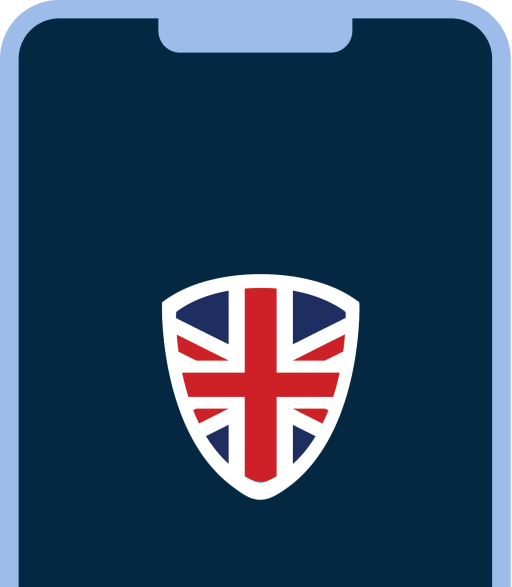


Your device connects to a VPN UK server first. Only after that encrypted step does your traffic continue on to STV Player, arriving from that server's region instead of your own.
Connect in 3 Steps
- 1Download VPN UK. Install the app on your device and allow the VPN connection when prompted.
- 2Choose the service and connect. Open Services in VPN UK and choose STV Player, then connect.
- 3Open STV Player. Once connected, open STV Player and sign in with your usual account if needed.
What VPN UK Provides — and What It Doesn't
What VPN UK provides
- An encrypted connection between your device and a VPN UK server
- A choice of which region your connection appears to come from
What VPN UK doesn't provide
- A STV Player account, subscription, or login
- A guarantee of access to any specific content or feature
Troubleshooting Common Issues
If you get a location, playback or connection message, reconnect in VPN UK and reopen the service. Our team checks service connections. If it persists, send us the exact message, your device and the selected service.
STV Player FAQs
Open Services in VPN UK and choose STV Player, then connect. Once connected, open STV Player and sign in with your usual account if needed.
Check the live channel and the on-demand listing separately. They may have different viewing requirements. If live TV asks for a postcode or other eligibility information, follow STV’s instructions using your actual details.
If you get a location, playback or connection message, reconnect in VPN UK and reopen the service. Our team checks service connections. If it persists, send us the exact message, your device and the selected service.
More services you can access with VPN UK
-
 Streaming
Netflix
Open VPN UK, choose Netflix and follow the connection steps.
-
 Streaming
Amazon Prime Video
Streaming access guide: why Amazon Prime Video can behave differently by region, and how to connect.
-
 Streaming
Hulu
Streaming access guide: why Hulu can behave differently by region, and how to connect.
-
 Streaming
BBC iPlayer
Streaming access guide: why BBC iPlayer can behave differently by region, and how to connect.
-
 Streaming
ITV
Streaming access guide: why ITV can behave differently by region, and how to connect.
-
 Streaming
HBO Max
Streaming access guide: why HBO Max can behave differently by region, and how to connect.
Ready to connect through VPN UK and try STV Player from a region of your choice?